
Most WordPress image galleries are built to display photos, products, or portfolio work. They look great visually, but they rarely encourage visitors to take the next step.
What if your gallery could do more than just show images?
With the latest Re Gallery feature, you can now add customizable buttons directly on gallery images, turning a simple image gallery into an interactive element that drives actions like:
- Add to Cart
- Get Started
- Contact Us
- Watch Now
- Book Now
- View Product and etc.
Instead of a passive gallery, you get a clickable WordPress gallery that encourages engagement and conversions.
For WordPress agencies, website creators, and WooCommerce store owners, this feature makes it easier to create interactive product galleries, portfolio galleries, and service shows without additional plugins or custom code.
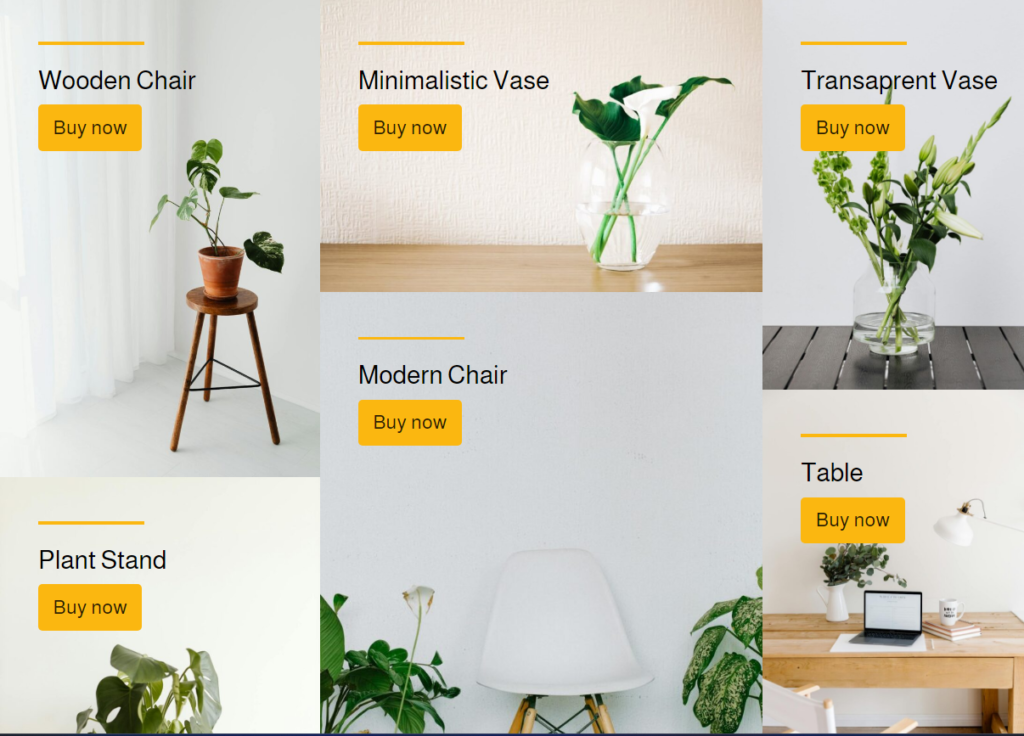
Why Interactive Galleries Matter for WordPress Websites
On modern websites, images are usually the first thing users interact with. Whether it’s product photos, case studies, or portfolio items, visitors explore visually before they read.
But traditional galleries stop at the viewing stage.
Adding a button overlay on gallery images bridges the gap between visual browsing and taking action.
For example, a visitor can:
- see a product
- click Add to Cart directly from the gallery
- continue shopping without navigating through multiple pages
Or they can:
- see a portfolio project
- click Contact Us
- immediately reach out for services
This reduces friction and helps turn galleries into conversion-focused design components.
Where to Enable the Button Feature in Re Gallery
The button option is located in the Text & Metadata section of the gallery settings.
Inside this panel, you will see a toggle called Show Button.
Enabling this option adds a button overlay on gallery items.
Once enabled, you can fully customize how the button behaves and looks.
Button Settings You Can Customize
Re Gallery gives several settings to control the button appearance and behavior.
These options allow designers and developers to match the button to the brand style and website layout.
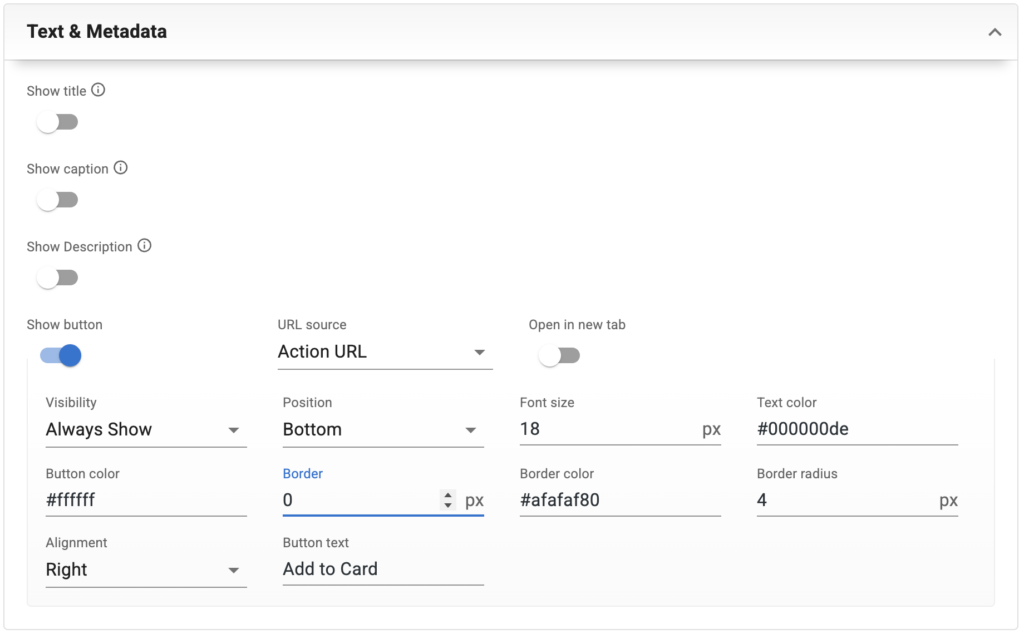
Button Text
You can define the label visitors will see.
Examples include:
- Add to Cart
- View Product
- Get Started
- Watch Now
- Contact Us
- Book Now
The text should reflect the action you want visitors to take.
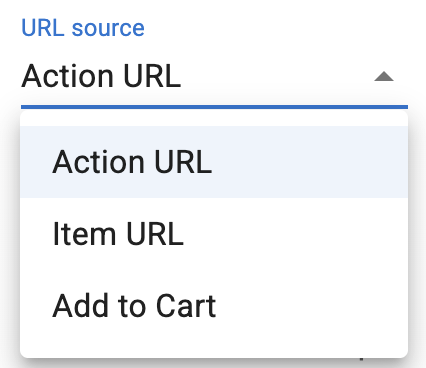
URL Source (Button Action)
The URL Source setting defines what happens when a visitor clicks the button.
You can choose between three options depending on the type of action you want to trigger:
Action URL
This option allows you to manually define the destination link.
It’s useful when you want the button to lead to a specific page such as:
- a landing page
- a contact page
- a booking form
- a video page
- any external website
This is the most flexible option and works for many different website scenarios.
Item URL
When this option is selected, the button will automatically link to the URL assigned to that gallery item.
This is helpful when each gallery image represents something unique, such as:
- a portfolio project
- a case study
- a product page
- a blog article
The button will simply open the page associated with that specific gallery item.
Add to Cart
This option is designed specifically for WooCommerce product galleries.
When enabled, the button will add the product associated with the gallery item directly to the user’s cart.
This allows visitors to shop directly from the gallery without navigating to a separate product page.
Button Position
The position controls where the button appears on the image.
Common options include:
- top
- center
- bottom
Many designers place the button at the bottom center because it keeps the layout clean and easy to notice.
Alignment
The button alignment controls its horizontal placement.
Options typically include:
- left
- center
- right
Center alignment is often used for ecommerce galleries.
Font Size and Text Color
You can adjust typography to ensure the button remains readable over different images.
For example:
- larger font for product galleries
- smaller font for minimalist portfolios
Button Color, Border, and Radius
These controls help match the button to your site’s design.
You can adjust:
- background color
- border thickness
- border color
- border radius
Rounded buttons are common for modern ecommerce designs.
Visibility
Visibility settings determine when the button appears.
For example:
- always visible
- visible on hover
Hover-based visibility is popular for portfolio and photography galleries because it keeps the design minimal.
Real Use Cases for Gallery Buttons
The button feature works for many different types of WordPress websites.
Below are some practical ways agencies and businesses are using it.
Add to Cart for WooCommerce Stores
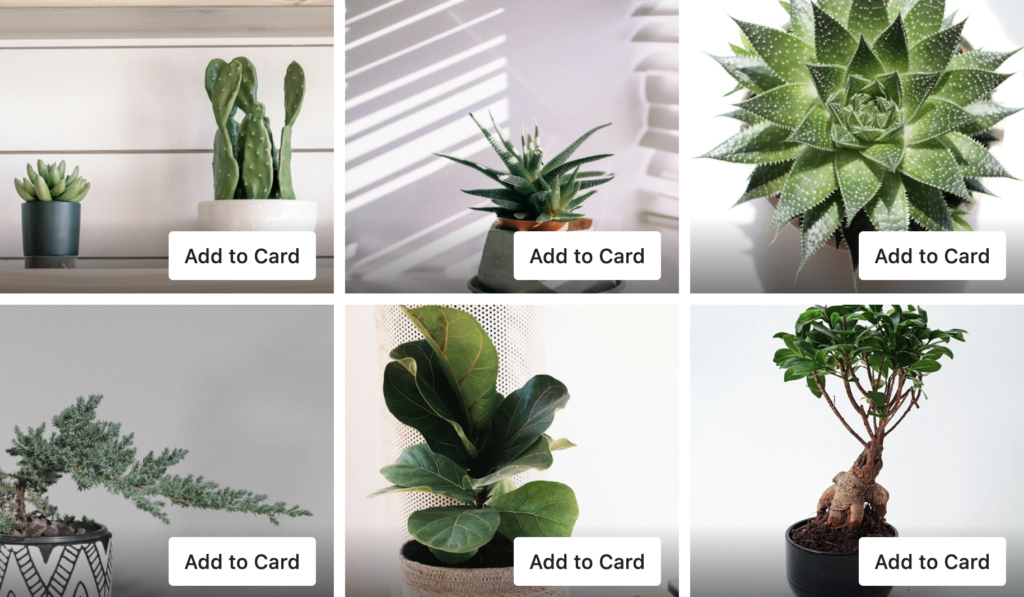
One of the most powerful use cases is creating a shoppable product gallery.
Each image represents a product, and the button lets users add items to the cart directly.
This works especially well for:
- fashion collections
- furniture galleries
- art print stores
- home decor shops
- handmade product collections
Instead of clicking through multiple pages, users can shop directly from the gallery.
Get Started for SaaS and Digital Products
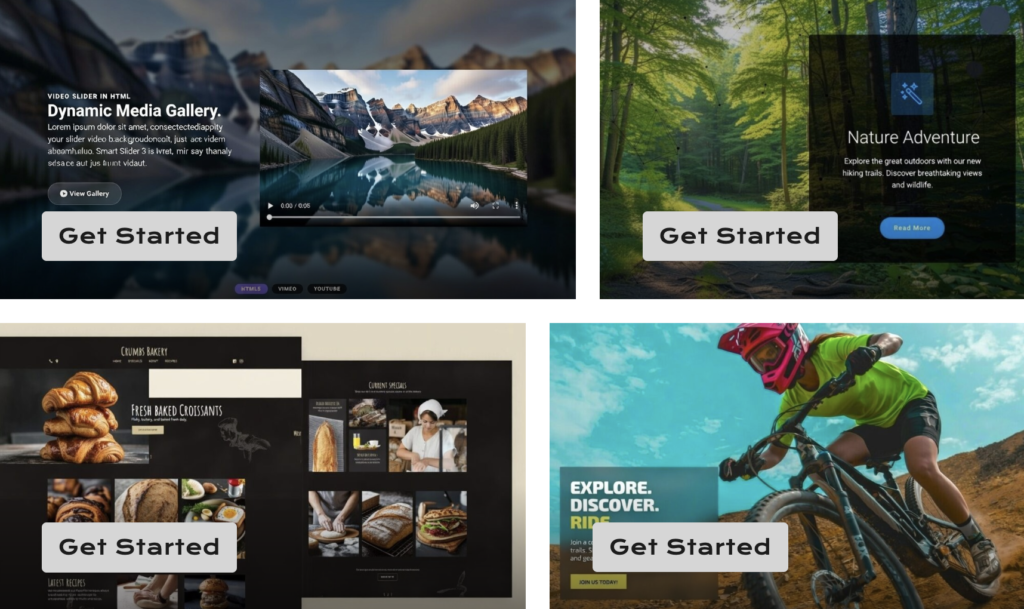
If you showcase templates, AI tools, or software features, each image can link to the signup flow.
Examples:
- Get Started
- Try Now
- Start Free Trial
This turns the gallery into a visual entry point for onboarding.
Watch Now for Video Galleries
If the gallery includes video thumbnails, a button can link to the video page.
Perfect for:
- tutorials
- product demos
- course previews
- YouTube content
Visitors can explore video content directly from the gallery.
Contact Us for Portfolio Websites

Design agencies, photographers, and freelancers often display their work in galleries.
Adding a Contact Us button below each project can help convert viewers into clients.
Example actions:
- Contact Us
- Start a Project
- Request Quote
The gallery becomes a lead generation tool.
Book Now for Service Businesses

If your gallery represents services rather than products, you can link buttons to booking systems.
Examples include:
- salons
- photographers
- consultants
- personal trainers
- interior designers
Users can move from visual inspiration to scheduling a service immediately.
Why WordPress Agencies and Developers Like This Feature
For agencies and developers, the ability to add interactive actions inside galleries offers several advantages.
It allows them to:
- build conversion-focused layouts faster
- reduce reliance on additional plugins
- create cleaner UX patterns
- design more engaging galleries
Instead of building custom solutions, the functionality is available directly within the gallery settings.
Final Thoughts
The new button feature in Re Gallery expands what WordPress galleries can do.
Instead of being static image displays, galleries can now function as:
- product showcases
- portfolio conversion tools
- service booking interfaces
- interactive content galleries
With a few simple settings inside Text & Metadata, you can enable buttons and transform your gallery into a clickable and action-driven experience.
For WordPress professionals, this makes it easier to create modern, interactive websites where images don’t just look good — they help visitors take the next step.