
Managing a handful of photos in WordPress is easy. Managing dozens—or hundreds—of gallery images one by one? That’s a different story. Opening every single photo to write alt text, assign categories, adjust focal points, and optimize file formats can eat up hours of your day.
With Re Gallery’s Bulk Edit feature, you can update metadata, organize categories, fix image cropping, and convert files to modern next-gen formats across your entire gallery in seconds.
In this guide, we’ll walk through everything you can do inside the Re Gallery Bulk Edit workspace so you can streamline your workflow and keep your WordPress galleries fast and SEO-friendly.
Step 1: Select Your Images and Open Bulk Edit

Getting started takes just two clicks inside your gallery editor:
- Choose your selection: Click to select the specific images you want to update, or click Select all to highlight every photo in your gallery at once.
- Launch the editor: Click the Bulk Edit button to open the batch editing interface.
(Tip: You can embed your walkthrough video right here so readers can follow along visually.)
Step 2: Switch Seamlessly Between Single and Bulk Mode
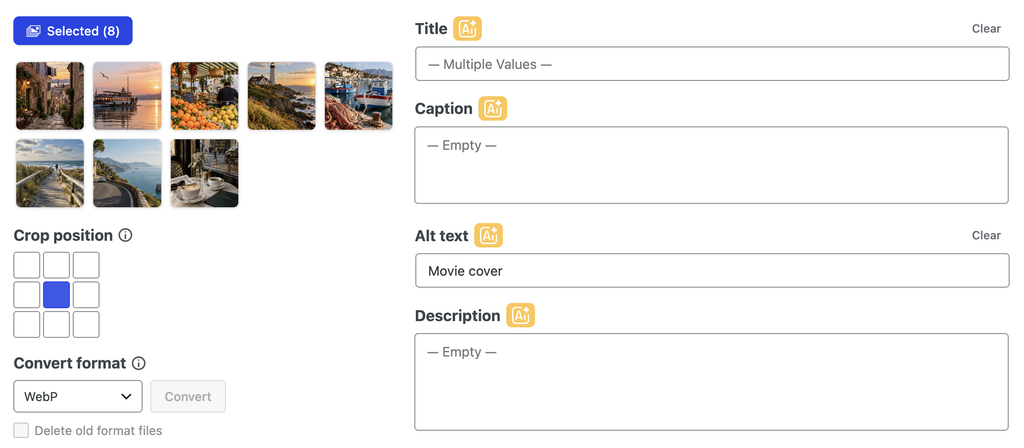
Sometimes you’re editing twenty photos at once, and you notice one specific image needs a custom tweak. You don’t have to close the window and lose your selection.
- Edit a single photo: Click any image thumbnail on the left panel to view and edit that specific photo’s data individually.
- Return to bulk mode: Click Selected at the top of the thumbnail list to jump right back to editing all selected images together.
Understanding “Multiple Values” vs. “Empty” Fields
When you’re viewing multiple images at once, Re Gallery keeps your existing data safe by clearly showing what’s currently inside each field:
- Multiple Values: Your selected images currently have different entries for that field (for example, unique titles or captions). Re Gallery won’t overwrite them unless you intentionally make a change.
- Empty: None of the selected images have any text in that field yet.
Step 3: Update Text, Clear Fields, or Auto-Generate with AI
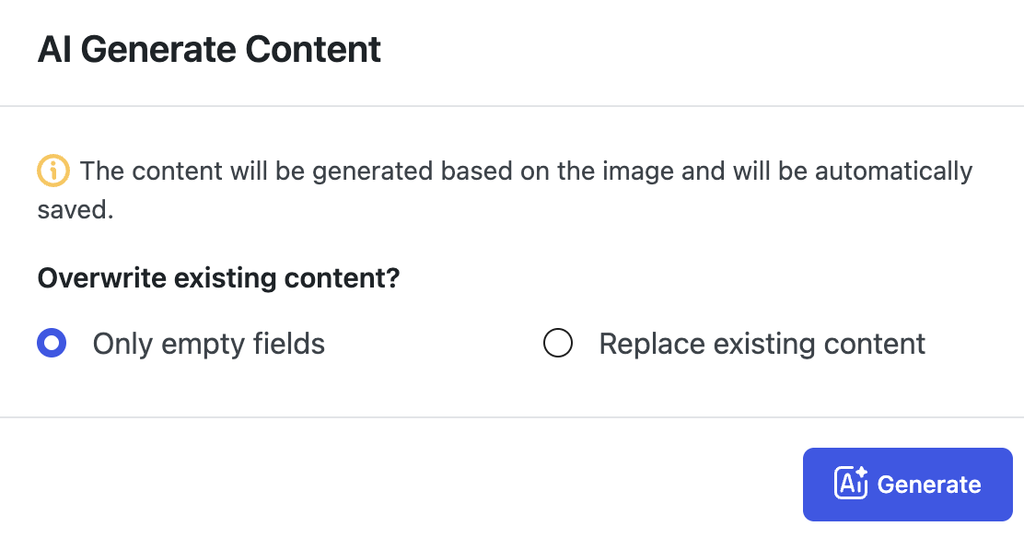
Inside the bulk metadata fields (such as Title, Alt Text, Caption, and Description), you have three fast ways to manage your content:
- Apply custom text to all: Type any text into a field to apply that exact value across every selected image at once.
- Wipe fields clean: Click Clear next to a field to erase existing entries from all selected photos in one click.
- Generate metadata with AI: Click the AI icon to automatically generate accurate, SEO-friendly titles, alt text, and descriptions for all selected images simultaneously—no manual typing or external tools required.
Step 4: Organize Categories in Bulk
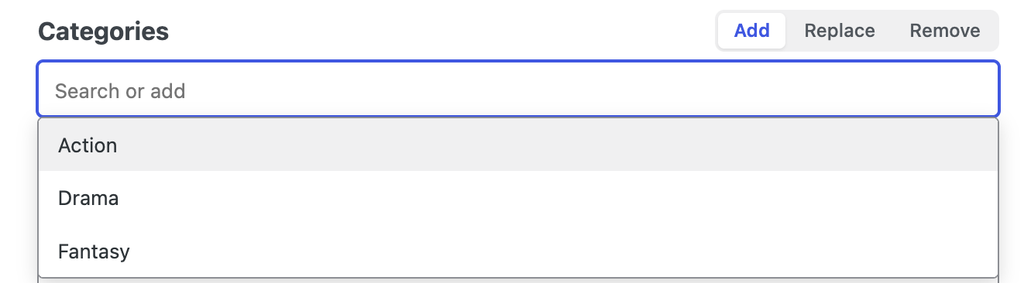
Keeping large portfolios, travel blogs, or WooCommerce product galleries filterable depends on clean categorization. Under the Categories section in Bulk Edit, you have complete control over how tags are applied:
- Add: Append new categories to your selected images while keeping their existing ones intact.
- Replace: Overwrite current categories with a brand-new set.
- Remove: Strip specific categories from all selected photos at once.
Step 5: Adjust Crop Position and Convert to WebP or AVIF
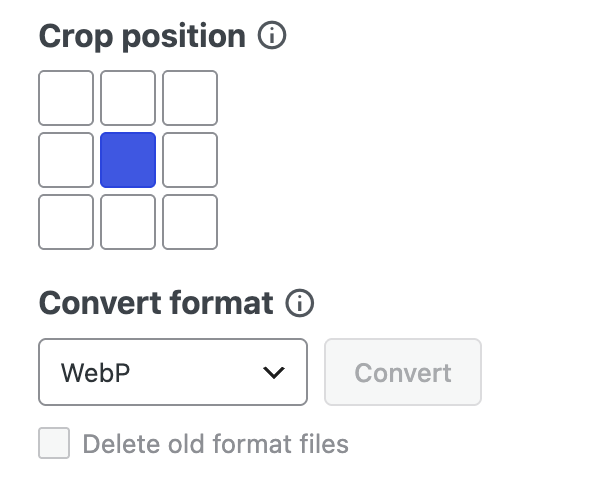
Visual polish and page speed go hand in hand—especially when Core Web Vitals and mobile load times are on the line. Before saving your changes, you can optimize both framing and file weight right from the same screen:
- Change Crop Position: Set a consistent focal point (such as center, top, or bottom) across multiple thumbnails so subjects don’t get awkwardly cut off in uniform grid or masonry layouts.
- Convert to Lightweight Formats: Convert your selected images directly to WebP or AVIF. Next-gen formats dramatically shrink file sizes without sacrificing visual clarity, helping your galleries load faster on every device.
Once everything looks right, click Update to apply all changes across your selected images at once.
Ready to Speed Up Your WordPress Gallery Workflow?
Stop editing gallery photos one by one. Whether you’re launching a new photography portfolio, updating a client site, or optimizing product galleries for faster load times, Re Gallery’s Bulk Edit tools give you full control in a fraction of the time.
Download Re Gallery or explore the Live Admin Demo to test bulk editing and AI metadata generation on your own images today.