
If you’re building a website with Bricks Builder and struggling to get beyond its basic gallery element, you’re not alone. The native Bricks gallery works for simple image displays, but as soon as you need masonry layouts, a carousel, AI-generated captions, or a proper gallery management dashboard, it falls short. This guide covers everything you need to know about pairing Re Gallery with Bricks Builder to create professional, responsive photo galleries without writing a single line of code.
What You’ll Learn
- Why the native Bricks gallery element has real limitations for professional sites
- What Re Gallery adds — layouts, AI captions, templates, WooCommerce support, and more
- Step-by-step: how to install and use Re Gallery in Bricks Builder
- How Re Gallery compares to older, shortcode-based gallery plugins
- Answers to the most common questions about Bricks Builder gallery plugins
Why the Native Bricks Builder Gallery Has Limitations
Bricks Builder is one of the fastest and most capable visual page builders available for WordPress, but its built-in gallery element was designed for simplicity, not power. For photographers, agencies, bloggers, and eCommerce businesses, this gap quickly becomes a bottleneck.
Common Limitations of the Default Bricks Gallery
- Only a handful of basic layout options (typically a simple grid)
- No professionally designed gallery templates to start from
- No AI-powered image title or description generation
- No standalone gallery management interface — everything lives inside the page builder
- Limited support for content-rich galleries that combine images with text
- Fewer customization controls for gallery behavior and appearance
- No advanced image organization or bulk editing tools
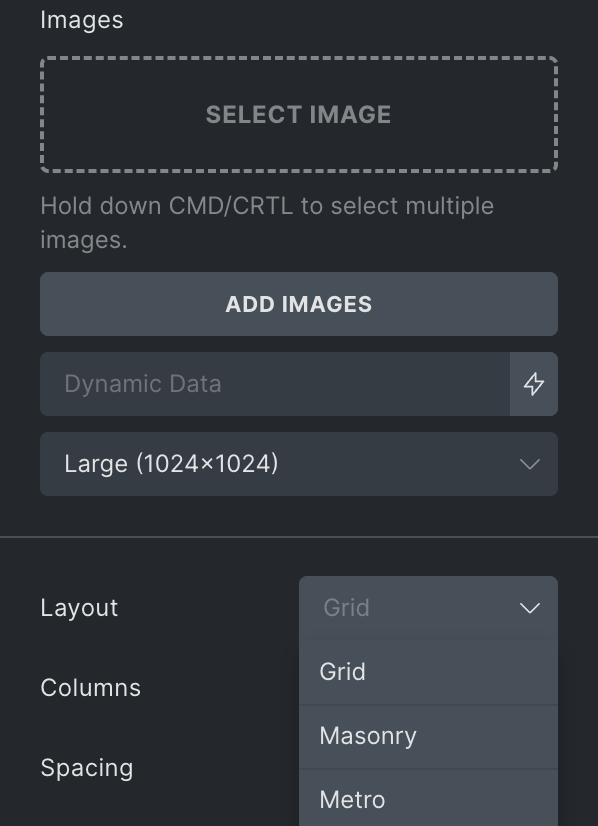
These constraints are acceptable for a contact page image grid, but they create real friction for portfolios, travel blogs, restaurant websites, and product showcases. Any context where images are the primary content.
What Is Re Gallery?
Re Gallery is a responsive WordPress photo gallery plugin built specifically to go beyond what native page builder elements can offer. Rather than replacing Bricks Builder, it works alongside it, handling gallery creation, management, and advanced functionality, while Bricks handles your page layout and design.
The plugin is designed for users who want professional gallery results without coding: drag-and-drop image uploads, multiple layout styles, AI-generated captions, and a dedicated management interface that exists independently of any page builder.
| Feature | Bricks Gallery | Re Gallery |
|---|---|---|
| Gallery layouts | Grid, Masonry, Metro | Masonry, Grid, Justified, Carousel, Slider, and more |
| Pre-built templates | None | Professionally designed templates included |
| AI captions / alt text | None | Automatic AI-generated titles and descriptions |
| Gallery management | Inside page builder only | Standalone dashboard, independent of any builder |
| Content-rich galleries | Image only | Images, Videos, Posts, Pages + text, captions, descriptions |
| WooCommerce support | Limited | Product gallery showcase ready |
| Mobile responsiveness | Basic | Fully responsive, tested across devices |
| Live preview in Bricks | Yes | Yes — native Bricks element included |
Key Features of Re Gallery
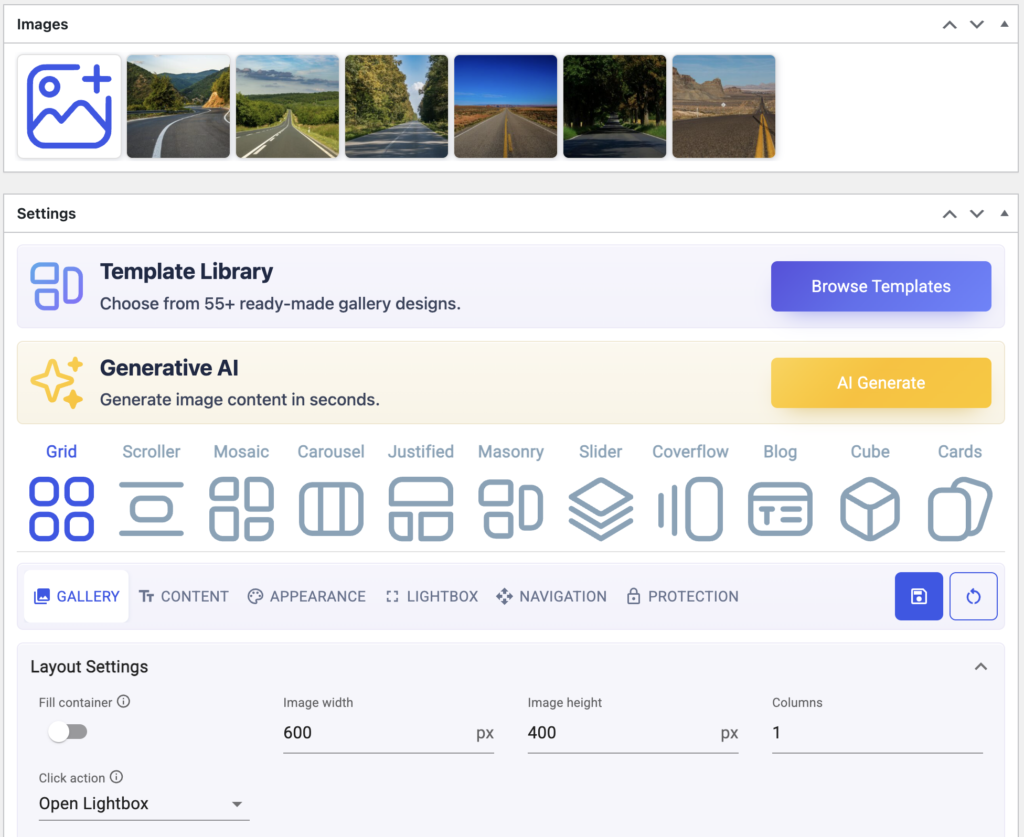
Multiple Gallery Layouts
Re Gallery supports Masonry, Grid, Justified, Carousel, Slider, and other layouts. Each layout is designed to suit a different type of visual content: masonry works well for mixed-size photography collections, justified layouts give editorial blogs a clean publication feel, and carousels are ideal for featured image rotations on landing pages.
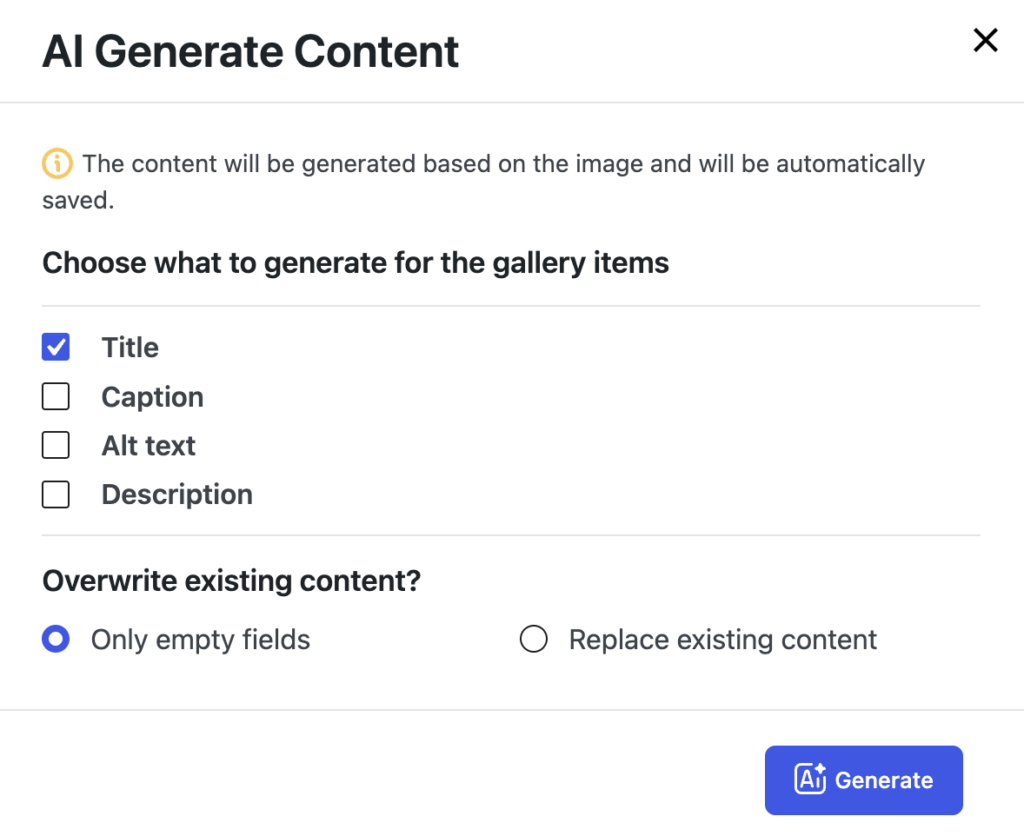
AI-Generated Image Titles and Descriptions
One of Re Gallery’s standout features is its AI-powered caption and description generation. Instead of manually writing alt text and captions for dozens or hundreds of images, the plugin analyzes your images and generates relevant, descriptive titles automatically. This saves significant time and has a secondary SEO benefit: properly described images are more likely to rank in Google Image Search and contribute to your page’s topical relevance.
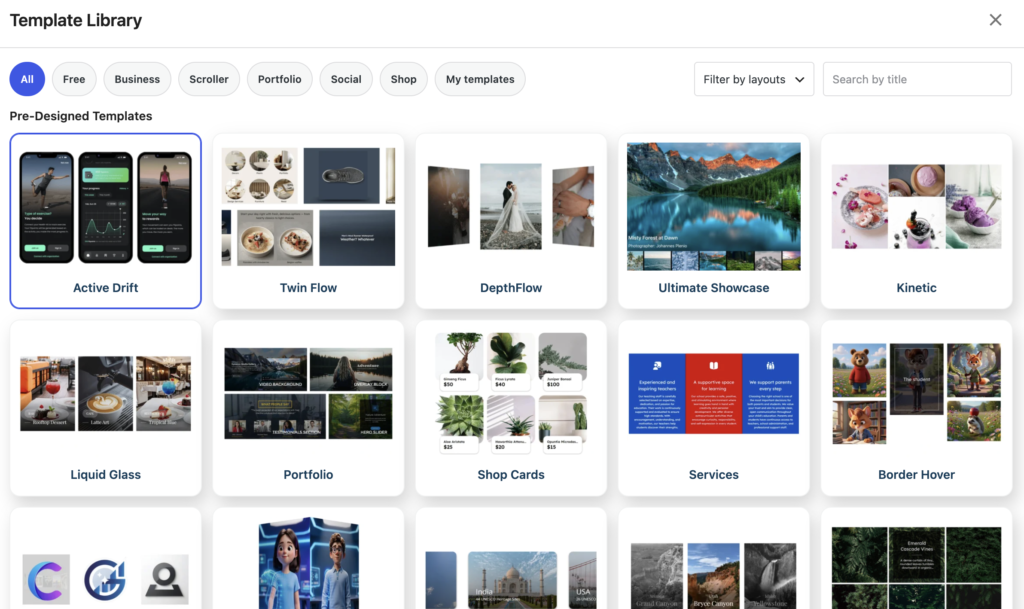
Professionally Designed Gallery Templates
Rather than building from scratch, Re Gallery includes ready-made gallery templates suited to common use cases — photography portfolios, product showcases, travel blogs, and more. These templates are a practical starting point that can be customized inside Bricks Builder with a live preview.
Standalone Gallery Management
Galleries in Re Gallery exist independently of any page or template. You create and manage them from a dedicated dashboard in your WordPress admin, then insert them anywhere via the Re Gallery Bricks element. This means you can update a gallery’s images or layout in one place and have those changes reflected across every page it appears on.
WooCommerce Product Gallery Support
For eCommerce sites, Re Gallery supports WooCommerce product image galleries. Instead of the default single-image product display, you can create engaging, multi-image showcases with layout options better suited to selling — giving shoppers a fuller view of products before they buy.

How to Add Re Gallery to a Bricks Builder Page: Step-by-Step
Adding a Re Gallery gallery to your Bricks-built page takes five steps.
- Install and activate Re Gallery from the WordPress plugin directory.
- Go to WordPress Dashboard → Re Gallery → Add New Gallery. Upload your images, choose a layout (masonry, grid, carousel, etc.), and configure the gallery settings.
- Navigate to the page where you want the gallery and click Edit with Bricks.
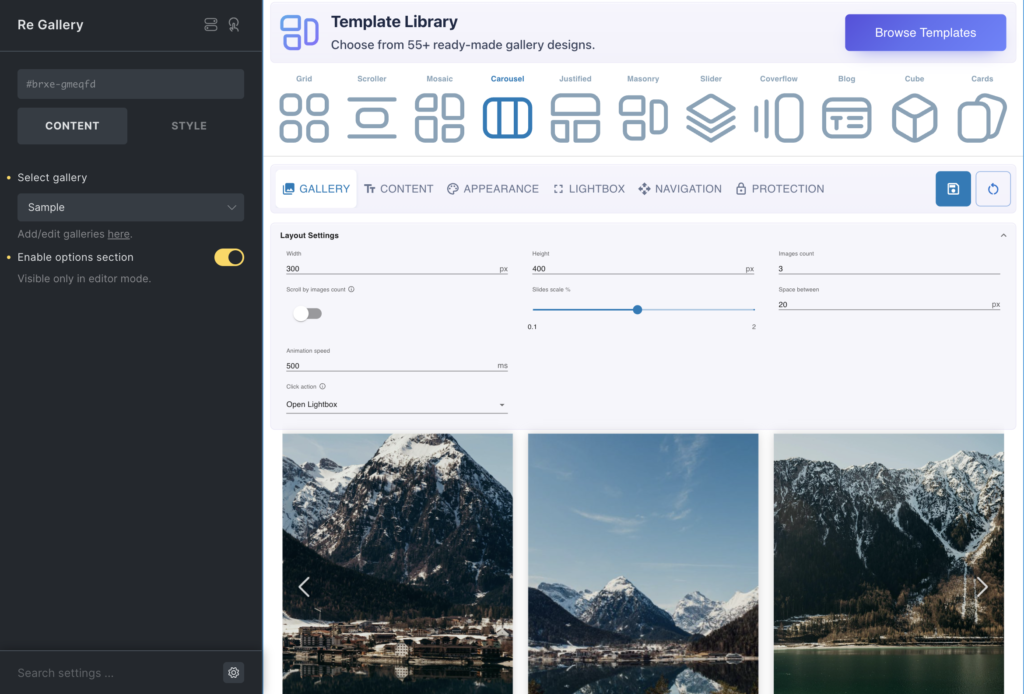
- In the Bricks editor panel, find the Re Gallery element under the Media section and drag it into your layout.
- Select your gallery from the dropdown in the element settings. Enable the Options panel to make live customizations — colors, spacing, hover effects, and more — directly inside Bricks Builder.
- Save and preview. Your gallery will render correctly within your Bricks layout on desktop, tablet, and mobile.
Pro Tip
Create your gallery in the Re Gallery dashboard before opening Bricks Builder. This way, your gallery is already available in the dropdown when you drag the element onto the page — no need to switch back and forth.
Why Not Just Use a Legacy Gallery Plugin?
Older gallery plugins — some of which date back to the early 2010s — were built before visual page builders became the standard way to build WordPress sites. Many of them rely on shortcodes or separate configuration workflows that sit outside the builder entirely. This creates friction: you configure the gallery in one interface, add a shortcode to your page, and lose the ability to preview changes in real time.
Re Gallery takes a different approach. Its dedicated Bricks Builder element means you configure and preview everything inside Bricks itself. There are no shortcodes to manage, no copy-pasting between interfaces, and no guessing how the gallery will look until you publish.
Who Is Re Gallery For?
Re Gallery is a strong fit for a wide range of WordPress sites built with Bricks Builder:
- Photographers who need portfolio galleries with masonry or justified layouts
- Agencies building client sites that require professional, template-ready gallery options
- Travel bloggers who want image-rich posts without plugin complexity
- Real estate agents showcasing property photos
- Restaurant owners building visual menus and atmosphere galleries
- WooCommerce store owners who want better product image presentations
- Anyone who wants a dedicated gallery management system without touching code
Best Practices for Using Re Gallery with Bricks Builder
- Always create and organize your gallery in the Re Gallery dashboard before embedding it in a Bricks page.
- Use AI-generated captions as a starting point — review and refine them for accuracy before publishing.
- Choose your layout based on content type: masonry for editorial photography, grid for product thumbnails, carousel for hero showcases.
- Keep gallery image file sizes optimized (ideally under 200KB per image) to maintain Bricks’ performance characteristics.
- Use the standalone gallery management feature to update images in one place rather than editing every page individually.
- Test gallery responsiveness on mobile before publishing — use Bricks’ built-in device preview alongside Re Gallery’s responsive output.
Common Mistakes to Avoid
- Uploading unoptimized, full-resolution images directly — this slows page load and undermines Bricks Builder’s performance-first design.
- Skipping AI-generated alt text review — auto-generated captions can occasionally be generic; always read them before publishing.
- Creating galleries directly inside Bricks instead of via the Re Gallery dashboard — this limits reusability.
- Using a shortcode-based legacy plugin alongside Bricks when a native element like Re Gallery is available.
- Ignoring mobile preview — gallery layouts that look great at 1440px can break at 375px without proper configuration.
Key Takeaways
Summary
- The native Bricks Builder gallery element is suitable for simple use cases but lacks the layout variety, templates, and management features professional sites need.
- Re Gallery is a dedicated WordPress gallery plugin with a native Bricks Builder element — no shortcodes required.
- Key differentiators include: AI-generated captions, multiple layout types (Masonry, Grid, Justified, Carousel, Slider), standalone gallery management, and WooCommerce support.
- Adding Re Gallery to Bricks Builder takes five steps and provides live preview inside the Bricks editor.
- For photographers, agencies, bloggers, and eCommerce sites, Re Gallery + Bricks Builder is one of the strongest gallery setups available for WordPress.
FAQ
What is Re Gallery for Bricks Builder?
Re Gallery is a WordPress gallery plugin with a dedicated native element for Bricks Builder. It provides multiple gallery layouts (masonry, grid, justified, carousel, slider), AI-generated image captions, pre-built templates, and a standalone gallery management dashboard — all accessible from inside the Bricks visual editor with live preview.
Is Re Gallery better than the native Bricks gallery element?
For simple image grids, the native Bricks gallery element is sufficient. However, if you need masonry layouts, carousels, AI captions, professionally designed templates, or the ability to manage galleries across multiple pages from a single dashboard, Re Gallery offers significantly more functionality.
Does Re Gallery work with Bricks Builder without shortcodes?
Yes. Re Gallery provides a dedicated element in the Bricks Builder element library. You drag it onto your canvas, select your gallery from a dropdown, and customize it visually — no shortcodes or copy-pasting required.
Can I use Re Gallery with WooCommerce in Bricks Builder?
Yes. Re Gallery supports WooCommerce product image galleries, making it suitable for eCommerce sites that want more engaging product photo presentations than the default WooCommerce gallery provides.
Does Re Gallery affect my site’s performance or page speed?
Re Gallery is built with performance in mind and should not significantly impact page speed when images are properly optimized. As with any gallery plugin, using optimized images (compressed, correctly sized) is the most important factor in maintaining fast load times.
What gallery layouts does Re Gallery support?
Re Gallery supports Masonry, Grid, Justified, Carousel, Slider, and additional layout options — each suited to different types of visual content and website styles.
How does AI caption generation work in Re Gallery?
Re Gallery’s AI feature analyzes uploaded images and automatically generates relevant titles and descriptions. These can be used as gallery captions and, importantly, contribute to image SEO and accessibility by providing meaningful alt text at scale.
Is Re Gallery suitable for photography portfolio websites?
Yes. Re Gallery is well-suited for photography portfolios, particularly because of its masonry and justified layout options, professional templates, AI caption generation, and the ability to manage large image collections from a dedicated dashboard.
Does Re Gallery support mobile-responsive galleries?
Yes. Re Gallery galleries are fully responsive and adapt to desktop, tablet, and mobile screen sizes. You can preview mobile behavior using Bricks Builder’s built-in device preview alongside Re Gallery’s responsive output.
How is Re Gallery different from older WordPress gallery plugins?
Legacy gallery plugins were typically built before modern visual page builders existed and rely on shortcodes or separate configuration workflows outside the builder. Re Gallery was designed for the modern WordPress stack — it includes a native Bricks Builder element, supports live preview inside the editor, and integrates AI features that older plugins lack.